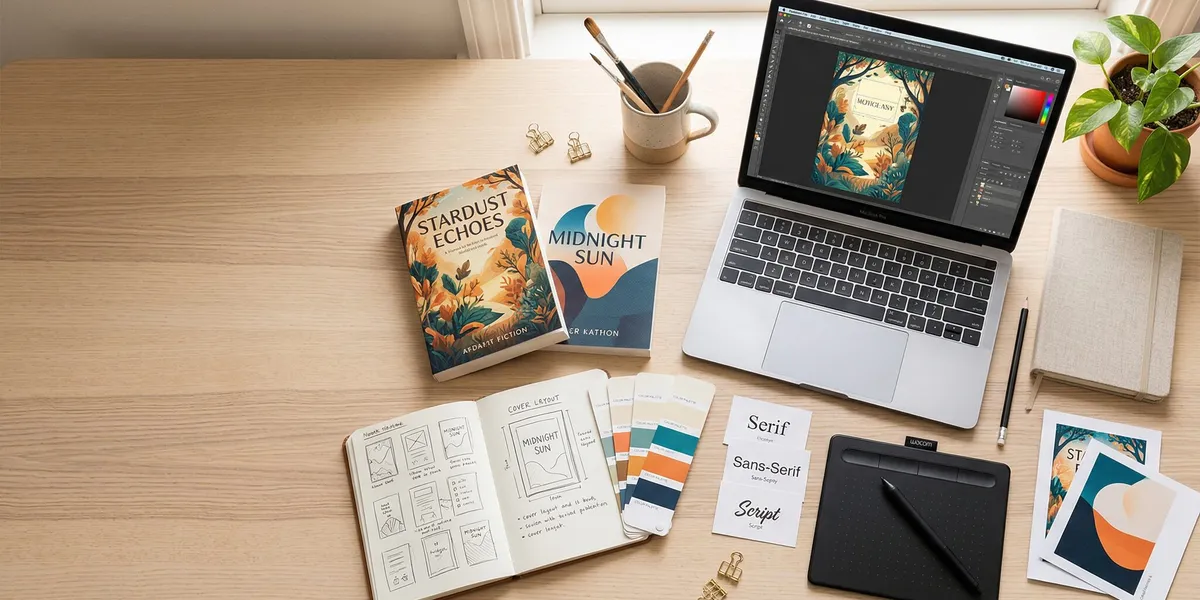
You can make a professional book cover yourself — even with zero design experience — if you follow the right process and use the right tools.
In this guide, you’ll learn:
- How to research your genre and gather design inspiration
- The exact sizing specs for ebook, paperback, and hardcover formats
- How to assemble your cover step by step in free tools like Canva
- Common mistakes that make covers look amateur (and how to avoid them)
Here’s the complete process from blank canvas to publish-ready file.
What Makes a Great Book Cover?
A great book cover does three things in under two seconds: it signals your genre, communicates your tone, and looks professional at thumbnail size.
That last part matters more than most authors realize. On Amazon, your cover displays at roughly 100 pixels wide. If your title is unreadable or your image is cluttered at that size, readers scroll right past.
The best covers are simple. One strong image, clear typography, and a color palette that matches reader expectations for your genre. You don’t need to be a graphic designer to achieve this — you just need a systematic approach.
Step 1: Research Your Genre’s Cover Conventions
Before you touch any design tool, spend 20 minutes studying covers in your genre. This is the single most important step, and most DIY authors skip it.
Go to Amazon’s Best Sellers page and navigate to your specific subcategory. Look at the top 20-30 covers and note the patterns.
What to look for:
- Color palette — Romance uses warm tones (pinks, reds, golds). Thrillers use dark backgrounds with bold accents. Nonfiction uses clean whites and blues.
- Typography style — Are titles in serif or sans-serif fonts? Script or bold? All caps or title case?
- Image type — Photos, illustrations, abstract designs, or typography-only?
- Layout patterns — Where does the title sit? How large is the author name?
Create a “swipe file” of 10-15 covers you admire. These aren’t covers you’ll copy — they’re references that show you what readers in your genre expect. According to The Book Designer, genre-appropriate covers outsell genre-breaking covers by a significant margin because readers use covers as a shorthand filter.
Step 2: Choose Your Design Software
You have several options depending on your budget and skill level. Here’s what works best for self-published authors:
| Tool | Best For | Cost | Skill Level |
|---|---|---|---|
| Canva | Most DIY authors | Free (Pro: $13/mo) | Beginner |
| Adobe InDesign | Print-focused authors | $23/mo | Intermediate |
| Adobe Photoshop | Photo manipulation covers | $23/mo | Intermediate |
| Affinity Publisher | Budget pro tool | $70 one-time | Intermediate |
| BookBrush | Authors specifically | $8-20/mo | Beginner |
| Amazon KDP Cover Creator | KDP-only authors | Free | Beginner |
For most self-published authors, Canva is the best starting point. It’s free, has thousands of book cover templates, and handles both ebook and print cover dimensions. You can upgrade later if you need more control.
If you’re publishing through Amazon KDP, their built-in Cover Creator tool generates basic covers for free — but the templates are limited and widely used, which makes your book look like every other self-published title using the same tool.
Step 3: Set Up Your Cover Dimensions
Getting your dimensions right from the start saves hours of frustration later. Different formats need different sizes.
Ebook Cover Specs
Amazon KDP recommends a minimum of 1000 x 1600 pixels with an ideal size of 2560 x 1600 pixels. The aspect ratio is 1.6:1 (height to width).
Other platforms follow similar specs:
- Apple Books: 1400 x 1873 pixels minimum
- Barnes & Noble Press: 1400 x 1873 pixels minimum
- IngramSpark: 1410 x 2250 pixels recommended
Use RGB color mode and save as a JPEG or PNG file. RGB is for screens — don’t use CMYK for ebooks.
Print Cover Specs (Paperback & Hardcover)
Print covers are more complex because they include a front cover, spine, and back cover in a single file.
- Resolution: 300 DPI minimum (never lower)
- Color mode: CMYK (for professional printing)
- File format: PDF (print-ready)
- Bleed: 0.125 inches (3.175mm) on all sides
To calculate your full cover width, use this formula from KDP’s cover guidelines:
Full cover width = Back cover width + Spine width + Front cover width + (Bleed x 2)
Spine width formula: Page count x 0.002252 inches (for white paper) or x 0.0025 inches (for cream paper).
For example, a 6” x 9” book with 200 pages on white paper:
- Spine width: 200 x 0.002252 = 0.45 inches
- Full width: 6 + 0.45 + 6 + 0.25 = 12.70 inches
- Full height: 9 + 0.25 = 9.25 inches
KDP and IngramSpark both provide free cover template generators that create a PDF template with the exact dimensions for your book.
Step 4: Select Your Cover Image
Your cover image is the visual anchor of your entire design. You have four main options:
Stock Photography
Sites like Unsplash (free), Shutterstock, and Adobe Stock offer millions of images. The risk: another author might use the same photo. Search for unique compositions and modify them with filters or overlays.
Custom Illustration
If your genre suits illustrated covers (fantasy, children’s books, literary fiction), consider commissioning an illustrator on Fiverr or 99designs. Costs range from $50 to $500+ depending on complexity.
AI-Generated Images
AI image generators like Midjourney, DALL-E, and Stable Diffusion can create unique cover imagery. The quality has improved dramatically, but check your publishing platform’s AI image policies before using them. As of 2026, Amazon KDP requires disclosure of AI-generated content.
Typography-Only Covers
Some genres — especially nonfiction, literary fiction, and memoir — work beautifully with typography-only covers. No image needed, just beautiful font choices and smart layout. This is often the easiest DIY option that still looks professional.
Whichever option you choose, make sure you have the legal right to use the image commercially. Free images from Google search results are not free to use on book covers.
Step 5: Choose Your Fonts
Typography makes or breaks a book cover. Even a stunning image fails if the title font looks cheap or unreadable.
Font pairing rules:
- Use a maximum of two fonts — one for the title, one for the author name (and subtitle, if applicable). More than two fonts looks cluttered.
- Ensure readability at thumbnail size. If you can’t read your title when the cover is 100 pixels wide, choose a bolder font.
- Match the genre mood. Serif fonts (like Garamond, Playfair Display) convey tradition and elegance. Sans-serif fonts (like Montserrat, Bebas Neue) feel modern and clean.
- Avoid free fonts that scream “free.” Comic Sans, Papyrus, and Curlz are banned from professional book covers. Period.
Where to find quality free fonts:
- Google Fonts — 1,500+ free fonts, all licensed for commercial use
- Font Squirrel — Curated free fonts with commercial licenses
- DaFont — Check individual licenses (not all are commercial-use)
Pro tip: Look at the fonts on your swipe file covers. You can identify fonts using tools like WhatTheFont or the Font Finder browser extension.
Step 6: Assemble Your Cover Design
Now you have all your ingredients. Here’s how to put them together in Canva (the process is similar in other tools):
1. Create a new design with your exact dimensions (2560 x 1600 for ebook, or your calculated print dimensions).
2. Set your background. Either place your cover image as the full background, or choose a solid color/gradient that matches your genre palette.
3. Position your title. Place it in the upper third or center of the cover. Make it large — it should occupy at least 25-30% of the cover’s visual space. Apply your chosen title font.
4. Add your author name. Usually placed at the bottom. It should be readable but smaller than the title (unless you’re a well-known author, in which case your name IS the selling point).
5. Add any subtitle. Place it between the title and author name. Use a smaller size and potentially a different font weight.
6. Apply finishing touches. Adjust colors, add subtle effects (drop shadows for readability over complex backgrounds, but never beveled or embossed text), and tweak spacing.
7. Check the thumbnail test. Shrink your design to 100 pixels wide. Can you still read the title? Does the image still “read”? If not, simplify.
The Thumbnail Test: Your Most Important Quality Check
This step is non-negotiable. Export your cover and resize it to 100 pixels wide. Look at it on your phone. Ask yourself:
- Can you read the title?
- Can you tell the genre?
- Does it look professional next to bestsellers in your category?
If the answer to any of these is no, go back and simplify. The most common fix: make the title bigger and reduce visual complexity.
Step 7: Create Your Print Cover (Front, Spine, and Back)
If you’re publishing a physical book, you need a full wrap-around cover. Download the template from your printing platform (KDP, IngramSpark, or Barnes & Noble Press).
Front Cover
Your ebook cover, adapted to print dimensions. Make sure the resolution is 300 DPI and the color mode is CMYK.
Spine
The spine includes your book title, author name, and optionally your publisher logo. Keep it simple — spine text should be readable when the book sits on a shelf.
Spine text orientation: Text reads top-to-bottom in the US and UK (so the title is readable when the book lies face-up). This is the industry standard for English-language books.
Back Cover
Your back cover should include:
- Book blurb (your sales description — 150-200 words)
- Author photo (optional but recommended)
- ISBN barcode (required for bookstore distribution — your printer typically adds this automatically)
- Category and price (optional)
- Endorsement quote (if you have one)
Keep the background consistent with your front cover design. The back cover should look like it belongs with the front, not like a separate document.
Step 8: Export and Save Your Files Correctly
Exporting in the wrong format is a surprisingly common mistake that causes upload rejections.
For ebooks:
- Format: JPEG or PNG
- Color mode: RGB
- Resolution: 72-300 DPI (72 is fine for screen display)
- Maximum file size: 50MB (Amazon KDP)
For print:
- Format: PDF (PDF/X-1a:2001 is ideal)
- Color mode: CMYK
- Resolution: 300 DPI minimum
- Include bleed marks
Save your working files. Keep the editable version (your Canva project, PSD, or INDD file) so you can make changes later without starting over. You’ll likely need to update your cover at least once — for a new subtitle, series branding, or updated endorsements.
Should You DIY or Hire a Professional Designer?
Making your own book cover works well when you’re on a tight budget, publishing in a genre with simple cover conventions, or testing a book idea before investing in professional design.
DIY your cover if:
- Your budget is under $100
- You’re publishing nonfiction with a typography-focused cover
- You’re testing a pen name or new genre
- You enjoy the design process
Hire a professional if:
- Your genre demands complex imagery (fantasy, romance, thriller)
- You’re launching a series and need consistent branding
- Your book is your primary business (the ROI on a great cover is enormous)
- You’ve tried DIY and the results don’t compare to competitive titles
Professional book cover designers typically charge $300-$1,500 for a custom cover. Sites like Reedsy, 99designs, and Fiverr connect you with designers at various price points.
How to Make a Book Cover With AI Tools
AI has changed the game for book cover creation. In 2026, you can generate unique cover imagery, experiment with layouts, and even get design feedback using AI-powered tools.
Our Pick — Chapter
Chapter helps you write your entire book with AI — and when your manuscript is ready, you can move straight into cover creation and publishing without switching platforms.
Best for: Authors who want an end-to-end workflow from writing to publishing Pricing: $97 one-time (nonfiction) | Varies (fiction) Why we built it: Your book cover should match your book’s content, and Chapter keeps everything connected.
For AI-powered cover design specifically, check out our guide to the best AI book cover generators. These tools can create professional-quality cover imagery in minutes, though you’ll still want to handle the typography and layout yourself for the best results.
Common Book Cover Mistakes to Avoid
These are the errors that instantly mark a cover as amateur:
- Too many fonts. Stick to two. Three is pushing it. Four is chaos.
- Unreadable text at thumbnail size. If your title disappears when small, it’s too thin, too small, or placed over a busy background.
- Ignoring genre conventions. A pastel watercolor cover on a military thriller will confuse readers, not attract them.
- Low-resolution images. Pixelated covers scream “I didn’t care enough to find a proper image.”
- Cluttered design. White space is your friend. Every element on your cover should earn its place.
- Copyright violations. Using images you found on Google without a commercial license can result in legal action.
- Inconsistent series branding. If you’re writing a series, design a template for the first cover and apply it to all subsequent books.
How Much Does It Cost to Make a Book Cover?
The cost to make a book cover ranges from $0 (fully DIY with free tools) to $2,000+ for premium custom designs.
| Approach | Typical Cost | What You Get |
|---|---|---|
| Free DIY (Canva, KDP Cover Creator) | $0 | Basic cover with templates |
| Premium DIY (stock photo + Canva Pro) | $15-50 | Professional-looking cover |
| Fiverr designer | $50-300 | Custom design, varying quality |
| Professional designer | $300-1,500 | Custom, genre-specific, high quality |
| Premium agency | $1,500-3,000+ | Full branding package |
For most self-published authors, the sweet spot is either a premium DIY approach ($15-50) or a mid-range professional designer ($300-800). The premium DIY route works especially well for nonfiction, where typography-focused covers are the norm.
If you’re factoring cover costs into your overall budget, see our full breakdown of self-publishing costs.
Can You Make a Book Cover for Free?
Yes, you can make a book cover for free using Canva’s free tier, Amazon KDP’s Cover Creator, or GIMP (a free alternative to Photoshop). Pair these with free stock images from Unsplash or Pexels and free commercial-use fonts from Google Fonts.
The trade-off with free tools is limited customization. Canva’s free tier restricts some templates and premium elements. KDP’s Cover Creator uses widely-recognized templates that make your book look generic. But if you’re starting out and budget is a real constraint, free tools can produce a cover that’s professional enough to launch with.
How Long Does It Take to Make a Book Cover?
A DIY book cover typically takes 4-8 hours for your first attempt, including research time. Once you’re familiar with your tools, subsequent covers take 2-4 hours.
A professional designer usually delivers a first draft within 5-10 business days, with 2-3 rounds of revisions over an additional 1-2 weeks.
If you’re on a tight timeline and self-publishing on Amazon, plan for at least one full weekend dedicated to cover creation. Rushing the process shows in the final product.
FAQ
How do you make a book cover for beginners?
To make a book cover as a beginner, start by studying 15-20 covers in your genre on Amazon’s bestseller list, then use a free tool like Canva to build your cover using a template. Choose one strong image, pick two fonts maximum, and test your design at thumbnail size before publishing.
What size should a book cover be?
A book cover should be 2560 x 1600 pixels (1.6:1 ratio) for ebooks on Amazon KDP. Print covers require 300 DPI resolution with dimensions based on your trim size plus spine width plus bleed — use your printer’s free template generator to get exact measurements.
Can I make my own book cover for free?
Yes, you can make your own book cover for free using Canva’s free plan, Amazon KDP Cover Creator, or GIMP. Pair these tools with free stock photos from Unsplash and free fonts from Google Fonts. The results won’t match a professional designer, but they’re sufficient for launching.
What is the best software to design a book cover?
The best book cover design software depends on your skill level. Canva is best for beginners, Affinity Publisher ($70 one-time) is best for intermediate users wanting pro features without a subscription, and Adobe InDesign ($23/month) is the industry standard for professionals.
Do I need different covers for ebook and print?
Yes, ebook and print covers have different technical requirements. Ebook covers use RGB color mode at screen resolution, while print covers require CMYK color mode at 300 DPI. Print covers also include a spine and back cover that ebooks don’t need. Design your front cover first, then adapt it for each format.